
Microsoft Corp. today announced the availability of Microsoft Streets & Trips 2006 with GPS Locator, the latest version of the best-selling mapping and travel planning software for the United States and Canada. Microsoft Streets & Trips 2006 with GPS Locator introduces Voice-Prompted Directions, a hands-free option that reassures travelers with turn-by-turn directional information so everyone in the car can enjoy the ride without the stress of getting lost. For running errands around town, taking a family road trip, finding the way around a new city or planning a day of business meetings, Streets & Trips 2006 with GPS Locator offers easy-to-use tools to plan personalized trips and travel with confidence.
Microsoft Streets and Trips 2006 is a slick mapping program that's great for planning weekend getaways, cross-country treks, and other vehicular excursions. This year's version displays about 5.9 million miles of roads, plus another 1.8 million points of interest, including ATMs, museums, restaurants, and zoos. Impressive sounding, perhaps, but DeLorme Street Atlas USA 2006 shows more eateries and attractions, a fact we learned when using both programs to explore various U.S. cities.
Example: In a square block of downtown San Francisco west of Moscone Center, Streets and Trips shows only 4 points of interest, while Street Atlas USA displays 11. Free mapping services, such as Google Local, also help to make Streets and Trips a tough sell. If ease of use is critical in a software-based atlas, Microsoft Streets and Trips is your best choice. If you want a mapping program that shows the most restaurants, hotels, and other roadside attractions, DeLorme Street Atlas USA 2006 is the better pick.
Microsoft Streets and Trips 2006 offers some enticing extras like a the link to MSN Virtual Earth, Microsoft's online repository of satellite maps. Let's say you're viewing a map of San Francisco's Union Square and you want a bird's-eye view of it. Click the Virtual Earth icon at the top of the screen, and a satellite image of Union Square loads in your browser. Granted, this may be fluff, but it's fun. Far more useful are the (optional) GPS-related upgrades, particularly the new voice directions--crucial for using Streets and Trips while driving. (We'll examine the GPS features in a separate review.) If you don't have a GPS transponder but do have a Wi-Fi connection, the new Locate Me feature can utilize Wi-Fi hot spots to estimate your location. Naturally, you'll first have to be inside a Wi-Fi hot-spot range for this feature to work.
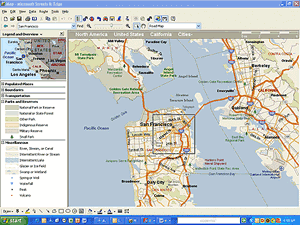
Microsoft Streets and Trips 2006 provides a better interface than DeLorme Street Atlas USA 2006. To view a city map, for instance, you simply type its name in the Find box. By comparison, Street Atlas makes you enter start and finish locations in separate windows, then it calculates the route before displaying a map--a slower approach. And it's easier in Streets and Trips to load sections of a map not on the screen--just click near the edge of the map window. The same task in Street Atlas requires an annoying click-and-drag procedure, which gets tiresome after a few tries. Not that online mapping services are any better, as is evident from a real-life comparison of online mapping capabilities.
Another new tool called Night Map Style is like wearing night-vision goggles. The map's background is pitch black, and roads and street names are shown in shades of green. It's convenient for night driving and other low-light conditions, although most of the background detail, including points of interest icons, aren't visible. We prefer the conventional map view, which is easy to read on a backlit laptop at night. Your visual preferences may vary.
Microsoft's support for Streets and Trips 2006 is very pretty generous. Streets and Trips includes one year of unlimited e-mail and toll-free telephone support--almost unheard of in software technical support. Microsoft promises e-mail responses within one business day. Microsoft also provides a searchable knowledge base dedicated to Streets and Trips 2006, as well as blogs, chats, and newsgroups, all available online.
System Requirements for Microsoft Streets & Trips 2006 with GPS Locator: Microsoft Windows Server 2003, Microsoft Windows XP Home Edition, Microsoft Windows XP Professional, Microsoft Windows 2000 Professional, Microsoft Windows 98 Second Edition, Microsoft Windows Millennium Edition
Microsoft Street & Trips with GSP is available for US, UK, Germany and Italy.

 Microsoft Corp. today announced the availability of Microsoft Streets & Trips 2006 with GPS Locator, the latest version of the best-selling mapping and travel planning software for the United States and Canada. Microsoft Streets & Trips 2006 with GPS Locator introduces Voice-Prompted Directions, a hands-free option that reassures travelers with turn-by-turn directional information so everyone in the car can enjoy the ride without the stress of getting lost. For running errands around town, taking a family road trip, finding the way around a new city or planning a day of business meetings, Streets & Trips 2006 with GPS Locator offers easy-to-use tools to plan personalized trips and travel with confidence.
 Often abbreviated Prt Scr, the Print Screen key is a useful key supported on most PCs. In DOS, pressing the Print Screen key causes the computer to send whatever images and text are currently on the display screen to the printer. Some graphics programs and Windows, use the Print Screen key to obtain Screen Captures.